Make XFCE application menu appear when using Windows key

To make the XFCE application menu pop up when you hit the Windows key add the following application via the keyboard shortcuts and press the Windows key when prompted.

xfce4-popup-applicationsmenu

It doesn’t work exactly the same as windows since hitting the key twice does not make the menu disappear.

UPDATE : On 14.04 this appears to now be called

xfce4-popup-whiskermenu

Seeing what files a debian package contains and what files it will install

I have just needed to install a dev package on my Xubuntu system and wanted to see what and where the package would install the files to. It seems that there is an apt-file command which is not installed by default. So I installed it…

apt-get install apt-file

and then followed by

apt-file update

In my case it wanted to update about 23.6M of information from the web. Once this was done I could run the command

apt-file list libusb-dev

and get a nice long list of what files would be installed and where they would be located.

udev rules for most Android based phones

Some time back I had issues using the Android Debug Bridge (ADB) from my linux laptop and had to hunt the web for the udev rules for my specific device. After my recent laptop reload I had to do this again so thanks to this article http://rootzwiki.com/topic/258-udev-rules-for-any-device-no-more-starting-adb-with-sudo/ found on RootzWiki all is well again. The basic requirements are below.

The udev rules need to be placed in a file in the /etc/udev/rules.d directory. As with the article above I placed these in 99-android.rules
The udev rules to be pasted into the file are as follows:

#Acer
SUBSYSTEM=="usb", SYSFS{idVendor}=="0502", MODE="0666"
#Dell
SUBSYSTEM=="usb", SYSFS{idVendor}=="413c", MODE="0666"
#Foxconn
SUBSYSTEM=="usb", SYSFS{idVendor}=="0489", MODE="0666"
#Garmin-Asus
SUBSYSTEM=="usb", SYSFS{idVendor}=="091E", MODE="0666"
#Google
SUBSYSTEM=="usb", SYSFS{idVendor}=="18d1", MODE="0666"
#HTC
SUBSYSTEM=="usb", SYSFS{idVendor}=="0bb4", MODE="0666"
#Huawei
SUBSYSTEM=="usb", SYSFS{idVendor}=="12d1", MODE="0666"
#Kyocera
SUBSYSTEM=="usb", SYSFS{idVendor}=="0482", MODE="0666"
#LG
SUBSYSTEM=="usb", SYSFS{idVendor}=="1004", MODE="0666"
#Motorola
SUBSYSTEM=="usb", SYSFS{idVendor}=="22b8", MODE="0666"
#Nvidia
SUBSYSTEM=="usb", SYSFS{idVendor}=="0955", MODE="0666"
#Pantech
SUBSYSTEM=="usb", SYSFS{idVendor}=="10A9", MODE="0666"
#Samsung
SUBSYSTEM=="usb", SYSFS{idVendor}=="04e8", MODE="0666"
#Sharp
SUBSYSTEM=="usb", SYSFS{idVendor}=="04dd", MODE="0666"
#Sony Ericsson
SUBSYSTEM=="usb", SYSFS{idVendor}=="0fce", MODE="0666"
#ZTE
SUBSYSTEM=="usb", SYSFS{idVendor}=="19D2", MODE="0666"

Once this is done save the file, set the permissions and restart the udev service via
sudo chmod a+r /etc/udev/rules.d/99-android.rules
sudo service udev restart
Xubuntu 12.10 laptop reinstallation

So today I landed up reinstalling my Xubuntu 12.10 system on my laptop. So that I can remember all the packages and settings I have listed them here.
apt-get install gnome-terminal
apt-get install build-essential
apt-get install nasm
apt-get install vim
apt-get install nmap tcptraceroute
apt-get install ncurses-term
apt-get install radiotray
apt-get install tasksel
tasksel install lamp
apt-get install git-core curl mysql-client mysql-server libmysql-ruby libmysqlclient-dev
apt-get install openssl libreadline6 libreadline6-dev zlib1g zlib1g-dev libssl-dev libyaml-dev libsqlite3-dev sqlite3 libxml2-dev libxslt-dev autoconf libc6-dev ncurses-dev automake libtool bison subversion pkg-config
apt-get install eclipse
apt-get install linux-source
apt-get install smartmontools
apt-get install openssh-server
apt-get install vlc
apt-get install gimp
apt-get install phpmyadmin
apt-get install libreoffice
apt-get install xubuntu-restricted-addons
apt-get install xubuntu-restricted-extras
apt-get install chromium-browser
apt-get install qtcreator
apt-get install filezilla
apt-get install pmidi openjdk-7-jdk nodejs htop p7zip
apt-get install mc
apt-get install libgraphicsmagick1-dev imagemagick
apt-get install libmagickwand-dev
apt-get install rdesktop
apt-get install chromium-bsu frozen-bubble zsnes dosbox
apt-get install calibre
apt-get install virtualbox
apt-get install ruby1.9.1-dev

vim settings

So I do almost 99% of my development in vim and over the years have setup a basic .vimrc file which has my personal settings. So that I can remember them I have posted my .vimrc file here. The colour scheme is from http://www.vim.org/scripts/script.php?script_id=2175. This does presuppose that you are using Linux and have the gnome-terminal installed else just remove the COLORTERM if statements.

set tabstop=4
set shiftwidth=4
set softtabstop=4
set expandtab
set smarttab
set syntax:on
autocmd BufWritePre *.rb :%s/\s\+$//e
if $COLORTERM == 'gnome-terminal'
set term=gnome-256color
colorscheme railscasts
else
colorscheme default
endif

Hope it helps.

Update :

apt-get install ncurses-term

may be required if vi complains and presents an error that  ‘gnome-256color’ is unknown

Plotting a traceroute on Google maps

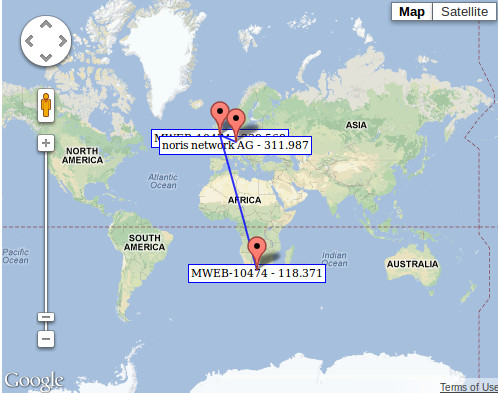
So last night I was playing with a side project and decided to see if I could put some markers onto a Google map based on a tcptraceroute. I am sure that there are numerous other sites that do this for you but it sounded like fun. The other criteria is that I did not want to create a solution based on an existing Ruby gem or other module since there are ones that do google maps integration. What this allows me to do is run a ruby script in the background and update an html page and related Javascript so that I can embed this into any non framework website or even just have it as a straight html and Javascript page but updated at regular intervals as required. Now why update you ask. Well the idea is to plot response times to each major ASN jump in order to help visually identify where latency in a given end point connection appears. So my current version has both the response times and the ASN details or each major jump. Basically a major jump is when the owner details for the ASN change.

So the simple logic is this… Do the tcptraceroute / traceroute and then pass each IP address via the GeoIP databases to see what the ASN details are. As these change I generate the code to create an array of markers which in turn will be used by the html page. My html page to present the map is static but includes the Javascript file that contains the array or marker coordinates.

There are a lot more things to take into account when looking at network response times etc. but for now this was simple enough for my needs.

As a side note of the information is purely an approximate and uses a series of GeoIP databases which I am sure will be out of date in a short period of time, but the end result is basically what I was looking for. And here is the end result.


Ruby and Rails on XUbuntu 12.10

I do a fair bit of development. This generally means working in either Ruby on Rails, PHP, Perl or classic asp. I have also started to dabble in QT recently. On the odd occasion I will also write some Assembler using NASM. What I can never remember is the installation of Ruby and Rails on my Linux desktop. So thanks to a post by Andre Honsberg I once again have this installed. However I thought I would post the steps here so that I could remember them next time. This installation method uses RVM which allows multiple versions of Ruby and Rails to co-exist on the same machine. Very useful since two of the web applications that I work on have different Ruby and Rails versions.

Firstly we need some basic pacakges.

sudo apt-get install build-essential git-core curl mysql-client mysql-server libmysql-ruby libmysqlclient-dev ruby1.9.1-dev

Then we install RVM.

bash -s stable < <(curl -s https://raw.github.com/wayneeseguin/rvm/master/binscripts/rvm-installer)

And then we setup the environment so that we can actually install Ruby. Please replace YOURUSER with your username.

echo '[[ -s "/home/YOURUSER/.rvm/scripts/rvm" ]] && source "/home/YOURUSER/.rvm/scripts/rvm"' >> ~/.bashrc

Not lets install Ruby.

rvm install 1.9.3

And finally set as the default

rvm use --default 1.9.3

Now install rails

gem install rails

And that’s basically it.